 Version 7.0
Tutorials / FAQs / Documentation
Make sure your connection is secure ("httpS:" instead of just "http:"). Click the logo above for a secure connection.
Version 7.0
Make sure your connection is secure ("httpS:" instead of just "http:"). Click the logo above for a secure connection.
Published on: 02/10/2026, 06:09 PM by Software Developer
Here is how to Add a New User to your CMS:
In the CMSbyCW Package, it comes with two types of Users, by default.
For this example, login as an Admin (Only Admins can add New Users)
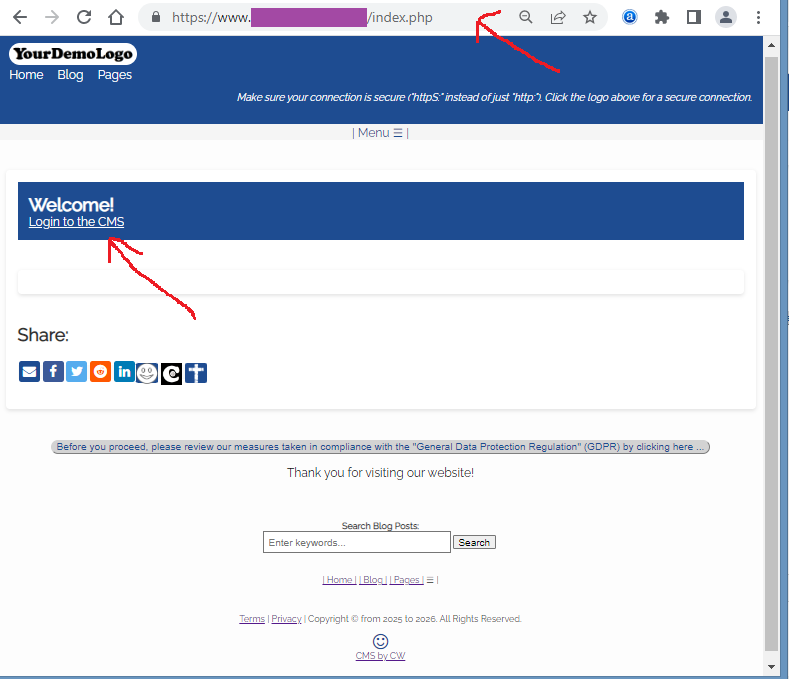
Just type your Admin Username, Password, and click the Login Button
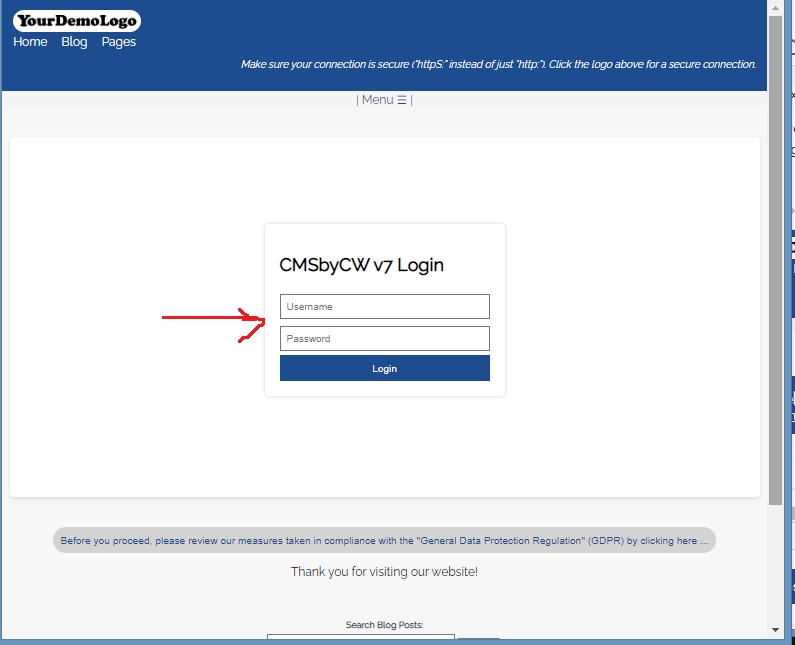
(Notice that I have also included a "Help" link in the Dashboard header, so you always have a direct link to the CMSbyCW documentation or FAQs, in case you need that resource).
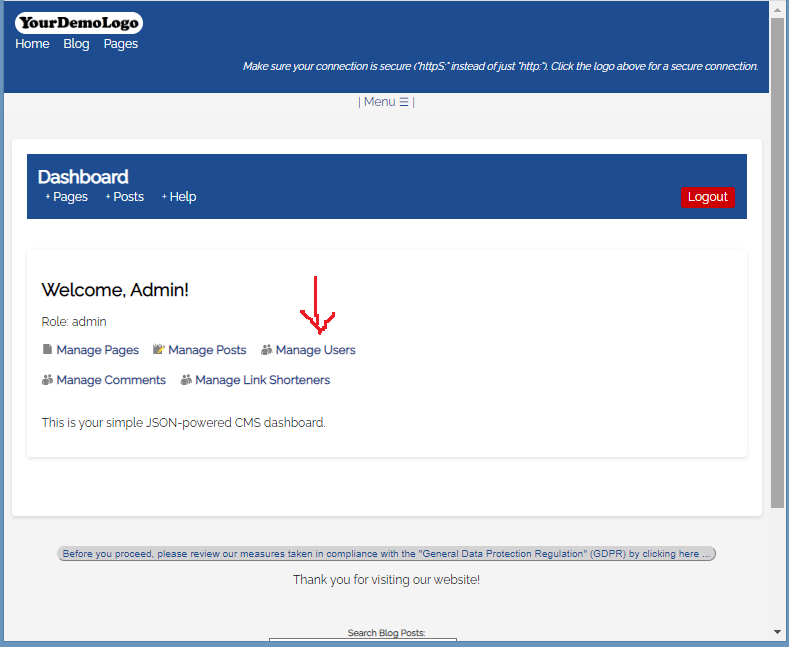
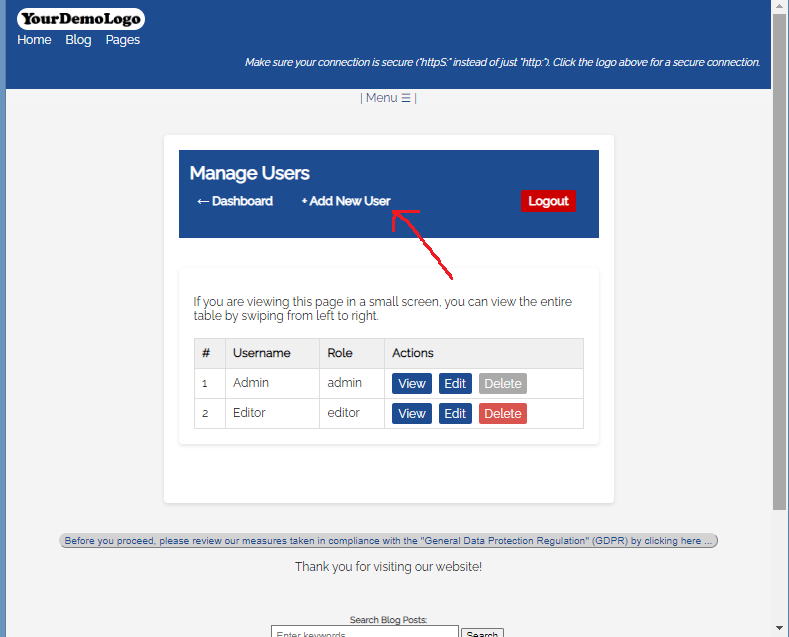
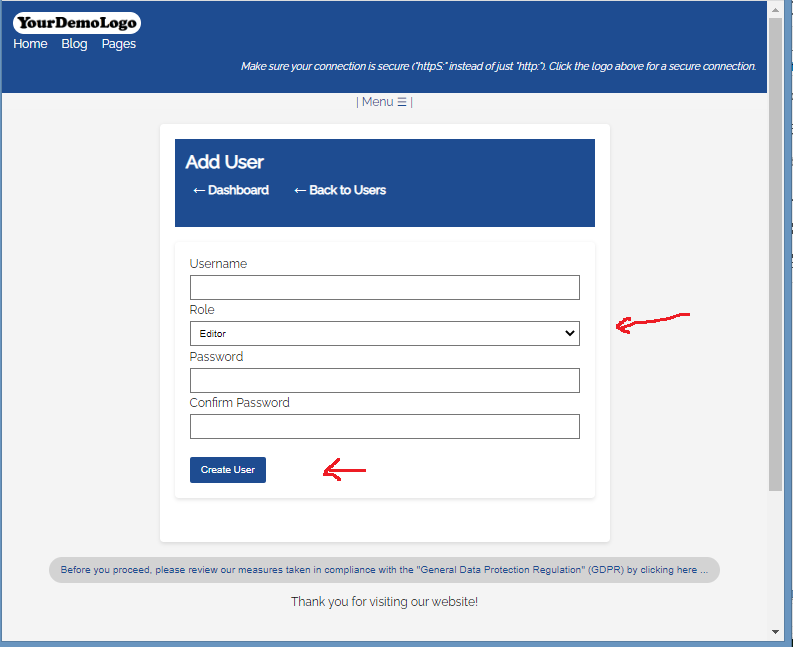
in "Role" , you can select an Admin Role or an Editor Role. (All new Users default to Editor role).
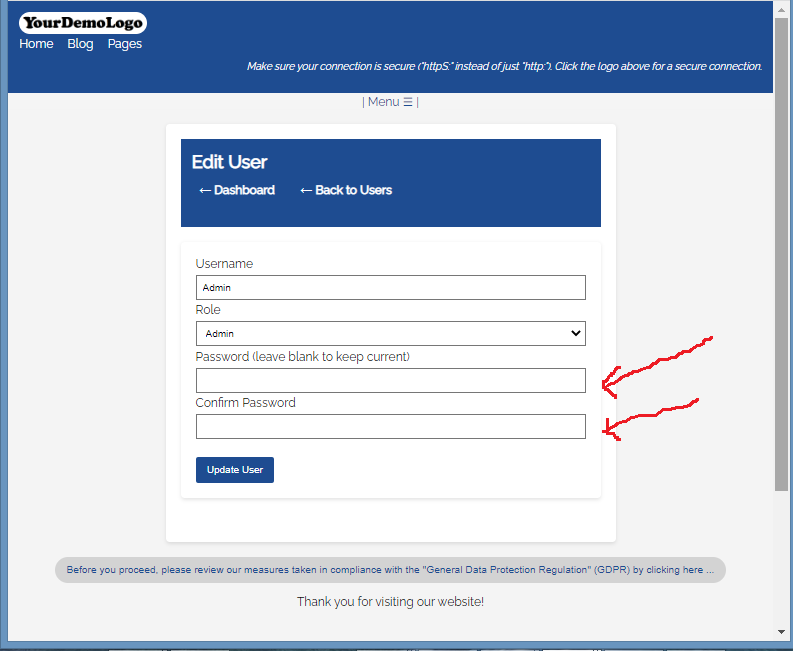
Note that as an Admin, you can change all the Users in your CMS, like "Username", "Role" and "Password".
Only Admins can add or delete User accounts. (You will see the button in Red, which means you can delete it. The Gray button means you can't. Admins can delete all other Users, except their own Admin account, and why did I program it that way? Because in Version 1.0, I deleted my Admin account by mistake! LOL! So I locked myself out of my own software! I had to reupload my unzipped file to log backin :-) ) As an Admin, I suggest you also create another Admin account, so at least have a maximum of 2 Admin accounts) You can change your Username also, so your username can be unique and not just the generic "Admin".
Editors can only view their own accounts and they can also change their own password.
.
Thank you for visiting our website!
